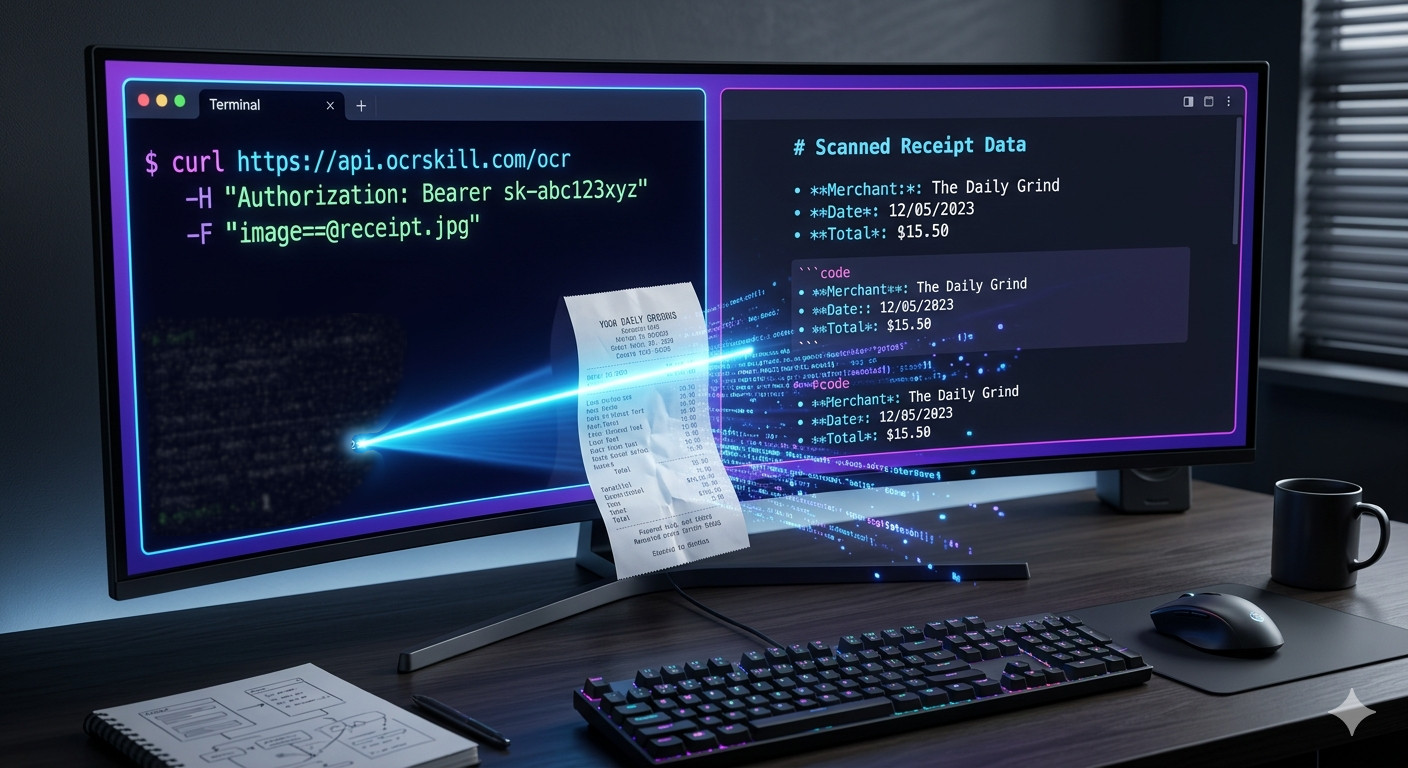
Image to Markdown OCR API: Simple cURL Uploads with --data-binary
The OpenAI-compatible OCR API is powerful, but sometimes you don’t want to build a complex chat completion payload just to extract text from a single image. Our new simplified OCR API endpoint removes that boilerplate setup. You can now upload an image directly using curl --data-binary and instantly convert the image to markdown text.
If your application requires a structured OCR response, this same endpoint seamlessly accepts a Mistral-style JSON payload featuring a document_url data URI.
How the Simplified OCR API Works
The new dedicated text extraction endpoint is:
POST https://api.ocrskill.com/ocr
This endpoint automatically handles the tedious parts of image-to-text processing for you:
- Base64 encoding for raw image uploads
- Constructing OpenAI-style multimodal payloads
- Forwarding the request to the underlying OCR model
- Returning clean markdown directly for the simplest use cases
This means you no longer need to manually assemble:
- A
messagesarray - An
image_urlcontent block - A formatted
data:image/...;base64,...string
…unless you specifically need the standard OpenAI-compatible route for a broader AI integration.
The Fastest Way to Convert Image to Markdown via cURL
This is now the fastest, most straightforward way to OCR a local image file:
export API_KEY="sk-your-key-here"

curl https://api.ocrskill.com/ocr \
  -H "Authorization: Bearer $API_KEY" \
  -H "Content-Type: image/png" \
  --data-binary "@example.png"
The response body returns plain, structured markdown text:
# Receipt

Store Name
123 Main St

Total: $18.42
If you want to save the extracted OCR output directly to a file:
curl https://api.ocrskill.com/ocr \
  -H "Authorization: Bearer $API_KEY" \
  -H "Content-Type: image/png" \
  --data-binary "@example.png" > output.md
Pro Tip: Always use
--data-binary, not-d. The-dflag is designed for form-style request bodies and can corrupt binary image uploads during text extraction.
Alternatively, you can submit the image as a form/multipart request:
curl https://api.ocrskill.com/ocr \
  -H "Authorization: Bearer $API_KEY" \
  -F "image=@receipt.jpg"
Mistral-Compatible JSON OCR Response
If your application is already configured to send the Mistral OCR request format, you can maintain that input structure and let ocrskill handle the heavy lifting behind the scenes.
curl https://api.ocrskill.com/ocr \
  -H "Authorization: Bearer $API_KEY" \
  -H "Content-Type: application/json" \
  -d '{
    "type": "document_url",
    "document_url": "data:image/jpeg;base64,/9j/4AAQSkZJRgABAQ..."
  }'
In this structured mode, the response is JSON, matching the format of a standard Mistral OCR result:
{
  "pages": [
    {
      "index": 0,
      "markdown": "# Receipt\n\nStore Name\n123 Main St\n\nTotal: $18.42",
      "images": [],
      "dimensions": {
        "dpi": 200,
        "height": 0,
        "width": 0
      }
    }
  ],
  "model": "LightOnOCR-2-1B",
  "document_annotation": null,
  "usage_info": {
    "pages_processed": 1,
    "doc_size_bytes": 123456
  }
}
Choosing the Right OCR Endpoint for Your App
Use the simplified OCR endpoint (/ocr) when:
- You want the shortest possible
curlcommand. - You are OCRing a local screenshot, scan, receipt, or photo.
- You just want raw markdown text returned immediately.
Use the OpenAI-compatible endpoint (/chat/completions) when:
- You are integrating directly with the official OpenAI SDK.
- You want to maintain a standard chat completions workflow.
- You are already constructing complex multimodal messages in your application.
Use the Mistral-style JSON mode on /ocr when:
- Your client already emits standard
document_urlpayloads. - You require a structured JSON OCR response instead of plain markdown text.
Get Your Free OCR API Key
You can generate a free, limited API key instantly to test the service (returned as JSON):
curl https://api.ocrskill.com/get-key.jsonFor a plain-text key, use:
curl https://api.ocrskill.com/get-keyConclusion
Our simplified OCR API is purpose-built for the most common text extraction workflow: upload one image, get markdown back. It eliminates multimodal request boilerplate while keeping the OpenAI-compatible API available for more advanced, multi-step AI integrations.
If you want the fastest possible start, begin with POST /ocr and --data-binary. When your application scales into a larger multimodal workflow, the robust OpenAI-compatible chat/completions route is always there for you.